Import with Document Manager
You can configure the format and tag properties in order to integrate with Document Manager .
These properties can be defined in two places:
- Header level – applies to the main document
- Collection level – applies to items within collections
This allows you to organize documents and associate them with specific formats and tags used by the Document Manager import.
Header Configuration
The header configuration defines the Document Manager settings for the main document.
Use the format and tag properties in the header section to specify how the document should be categorized.
Example of setting the Document Manager format and tag for the header:

Collection Configuration
The same properties can also be configured for collections.
This is useful when a document contains multiple grouped items and each group needs its own Document Manager settings.
Example of setting the Document Manager format and tag for a collection:
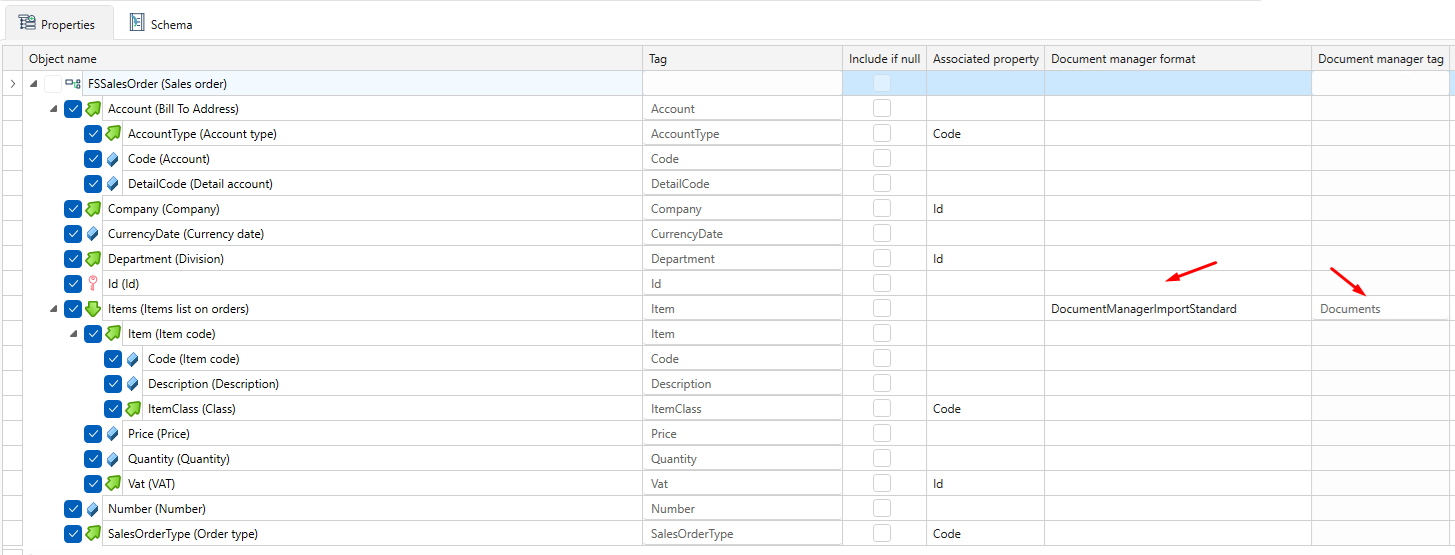
Document Manager Mapping
The highlighted value in the image below will be used as a child node in the generated file where the configuration is applied.

When the document is created, this value determines the name of the child element that will appear inside the imported file.
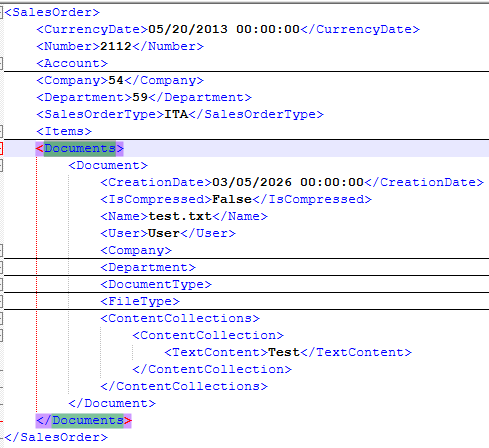
The node inside will use the tags defined in the FSDocument format

XML Example
Below is an example of configuring the Document Manager section using XML:
<SalesOrder>
	<CurrencyDate>05/20/2013 00:00:00</CurrencyDate>
	<Number>2112</Number>
	<Account>
		<Code>CI</Code>
		<DetailCode>08925</DetailCode>
		<AccountType>CI</AccountType>
	</Account>
	<Company>54</Company>
	<Department>59</Department>
	<SalesOrderType>ITA</SalesOrderType>
	<Items>
		<Item>
			<Price>5.00</Price>
			<Quantity>350.00</Quantity>
			<Item>
				<Code>PI1501</Code>
				<Description>Description</Description>
				<ItemClass>P</ItemClass>
			</Item>
			<Vat>375</Vat>
		</Item>
		<Item>
			<Price>4.58</Price>
			<Quantity>30.00</Quantity>
			<Item>
				<Code>CX0804</Code>
				<Description>Description</Description>
				<ItemClass>P</ItemClass>
			</Item>
			<Vat>375</Vat>
			<Documents>
				<Document>
					<CreationDate>03/05/2026 00:00:00</CreationDate>
					<IsCompressed>False</IsCompressed>
					<Name>export.txt</Name>
					<User>Your user</User>
					<Company>
						<Code>1</Code>
					</Company>
					<Department>
						<Code>1</Code>
					</Department>
					<DocumentType>
						<Code>Avvisi</Code>
						<UseCompression>False</UseCompression>
					</DocumentType>
					<FileType>
						<Code>TXT</Code>
					</FileType>
					<ContentCollections>
						<ContentCollection>
							<TextContent>Test</TextContent>
						</ContentCollection>
					</ContentCollections>
				</Document>
			</Documents>
		</Item>
	</Items>
	<Documents>
		<Document>
			<CreationDate>03/05/2026 00:00:00</CreationDate>
			<IsCompressed>False</IsCompressed>
			<Name>testExport545.txt</Name>
			<User>Your user</User>
			<Company>
				<Code>1</Code>
			</Company>
			<Department>
				<Code>1</Code>
			</Department>
			<DocumentType>
				<Code>Avvisi</Code>
				<UseCompression>False</UseCompression>
			</DocumentType>
			<FileType>
				<Code>TXT</Code>
			</FileType>
			<ContentCollections>
				<ContentCollection>
					<TextContent>Test</TextContent>
				</ContentCollection>
			</ContentCollections>
		</Document>
	</Documents>
</SalesOrder>
JSON Example
Below is an example of configuring the Document Manager section using JSON:
{
    "SalesOrder": {
        "CurrencyDate": "05/20/2013 00:00:00",
        "Account": {
            "Code": "CI",
            "DetailCode": "08925",
            "AccountType": "CI"
        },
        "Company": 54,
        "Department": 59,
        "SalesOrderType": "ITA",
        "Items": [
            {
                "Price": 5.0,
                "Quantity": 50.0,
                "Item": {
                    "Code": "PI1501",
                    "Description": "description",
                    "ItemClass": "P"
                },
                "Vat": 109
            },
            {
                "Price": 4.58,
                "Quantity": 10.0,
                "Item": {
                    "Code": "CX0804",
                    "Description": "description",
                    "ItemClass": "P"
                },
                "Vat": 109
            },
            {
                "Price": 5.0,
                "Quantity": 350.0,
                "Item": {
                    "Code": "PI1501",
                    "Description": "description",
                    "ItemClass": "P"
                },
                "Vat": 109
            },
            {
                "Price": 4.58,
                "Quantity": 30.0,
                "Item": {
                    "Code": "CX0804",
                    "Description": "description",
                    "ItemClass": "P"
                },
                "Vat": 109
            }
        ],
        "Documents": {
            "CreationDate": "03/05/2026 00:00:00",
            "IsCompressed": false,
            "Name": "webApi2.txt",
            "User": "User",
            "Company": {
                "Code": "1"
            },
            "Department": {
                "Code": "1"
            },
            "DocumentType": {
                "Code": "Avvisi",
                "UseCompression": false
            },
            "FileType": {
                "Code": "TXT"
            },
            "ContentCollections": [
                {
                    "TextContent": "Test"
                }
            ]
        }
    }
}